
Guides
How to clean duplicate photos and videos on iPhone (without cloud apps)
Last updated: February 16th, 2026
Quick workflow (safe first pass)
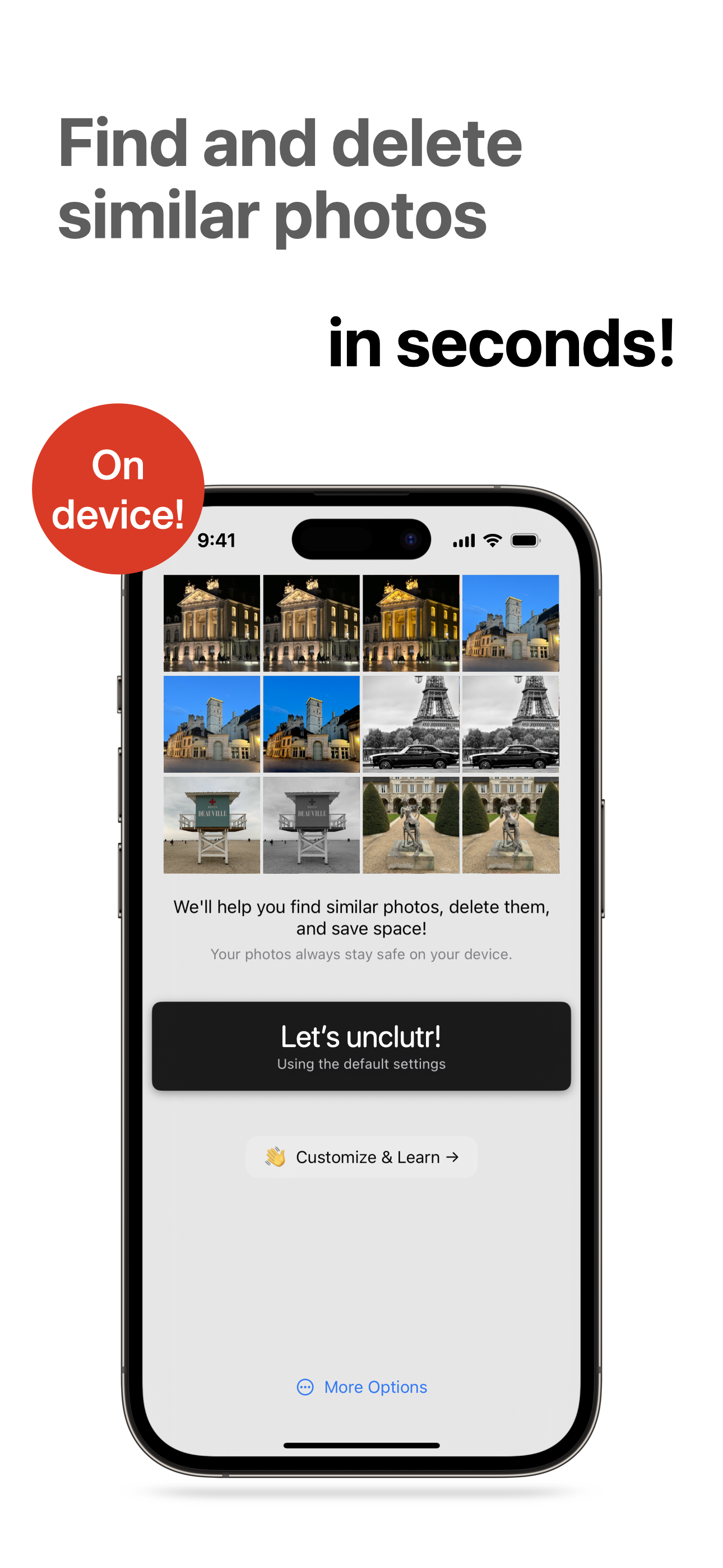
- Scan first to group similar photos and duplicate videos.
- Protect key memories before bulk cleanup.
- Review in groups and delete in batches.
- Start with the largest videos for faster storage wins.
Tip: If your library is large, start with a narrower range (recent months or a single year) to build confidence before scanning everything.
If your iPhone says storage is full, videos are usually a big part of the problem. Most cleanup advice focuses only on photos, but large libraries need both photo and video review.
Why iPhone cleanup gets hard once videos pile up
Video files are heavy, and duplicate takes are common. Add near-duplicate photos from bursts and events, and manual cleanup becomes slow and risky.
The goal is simple: reclaim space without accidentally deleting memories.
The safest workflow before you delete anything
- Scan first to group similar items.
- Protect important memories before bulk actions.
- Review in groups, then delete in batches.
This keeps cleanup fast while lowering regret risk.
Step 1: Scan similar photos and duplicate videos
Start with a full scan in Unclutr Photos. The latest updates include video scanning so you can review photos and videos in the same cleanup workflow.
You can see recent feature releases in the Unclutr Photos changelog.
Step 2: Protect important memories with Safe Photos
Before removing anything, mark key moments as Safe Photos. This prevents them from appearing in deletion suggestions and gives you confidence when cleaning aggressively.
Step 3: Review faster with quality cues and photo details
Use quality indicators and photo info overlays (size, type, dimensions, date) to pick winners quickly when several shots look similar.
Step 4: Delete in batches and reclaim space
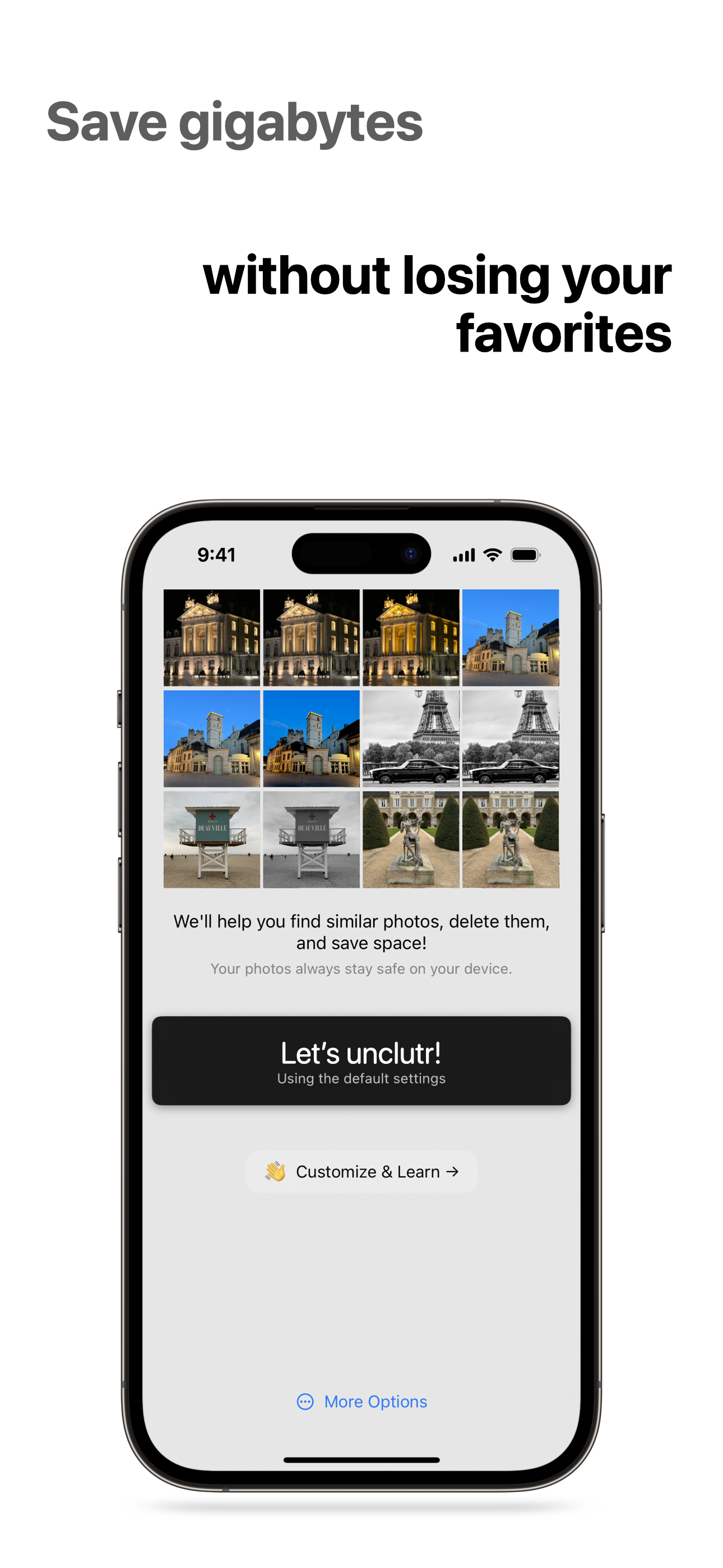
Once reviewed, remove marked items in batches. This makes it easier to catch mistakes early than deleting everything in one giant pass.
What to do if you have a very large library
- Start with a single year or a narrower date range.
- Exclude screenshots or noisy albums first.
- Do short weekly sessions instead of one massive cleanup.
FAQ: duplicate videos, iCloud, and privacy
Can I clean duplicate videos too?
Yes. Video scanning is now part of the Unclutr Photos workflow.
Do my files get uploaded?
No. Processing is on-device.
Is this better than one-tap cleanup?
It is safer. You stay in control of what gets removed.
Next step: automate cleanup so clutter does not return
After your first major pass, use a recurring system so your library stays clean. Follow this setup: Set-and-forget iPhone photo cleanup: monthly auto-scan workflow.
