
Guides
Set-and-forget iPhone photo cleanup: a monthly auto-scan workflow
Last updated: February 16th, 2026
Monthly system in one view
- Turn on Continuous Auto-Scan once.
- Pick a reminder schedule you will actually keep (weekly or monthly).
- Review suggested groups for 10–15 minutes.
- Stop when the timer ends and continue next session.
Tip: A smaller routine beats a perfect routine. Monthly cleanup works better than one giant cleanup you avoid for six months.
Most people do one giant cleanup, get tired, and stop. The better strategy is a small recurring system that keeps clutter under control over time.
Why one-off cleanups fail
A one-time cleanup can reclaim space fast, but new photos and videos accumulate every week. If there is no routine, your library drifts back to chaos.
The 15-minute monthly system
- Run automated scans in the background.
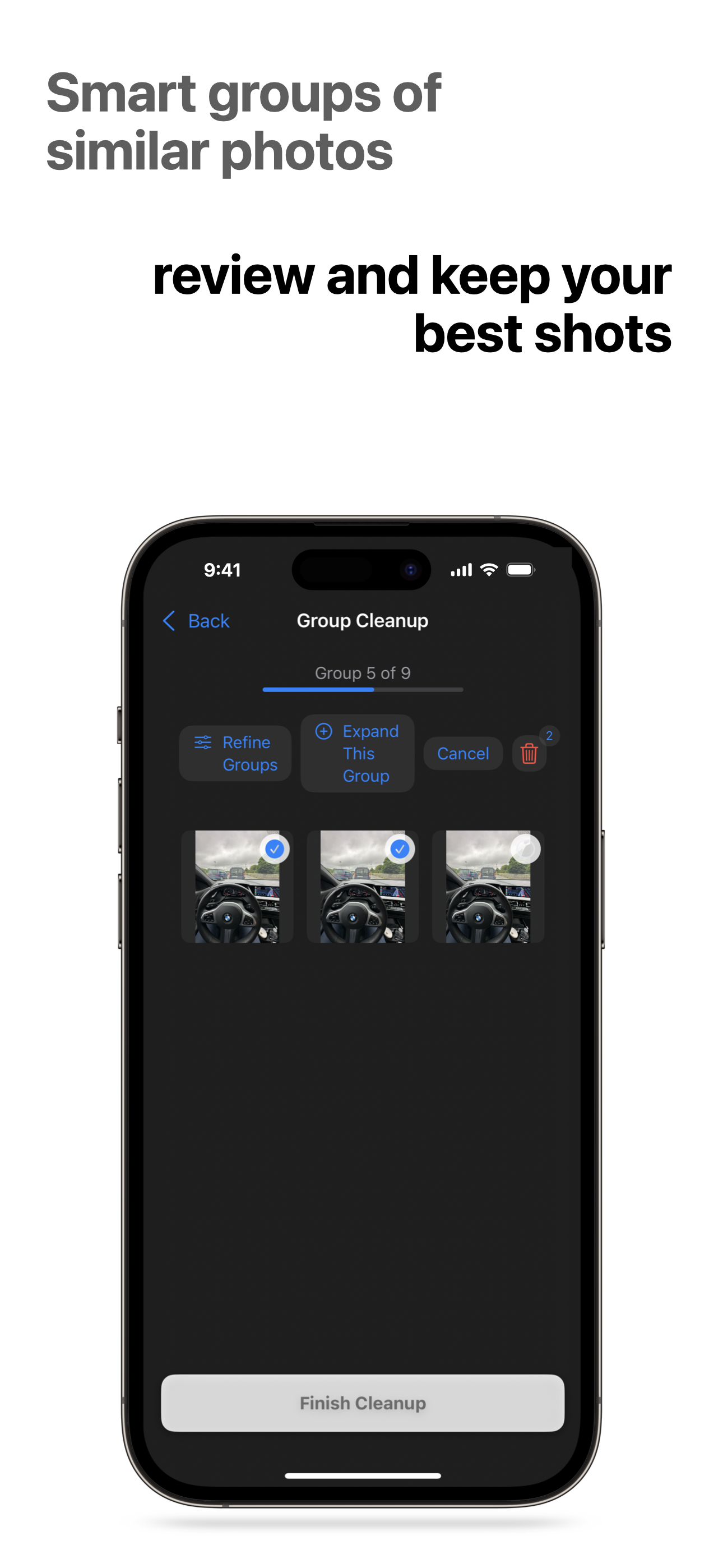
- Review suggested groups once a week or month.
- Track momentum using visible progress.
Step 1: Turn on Continuous Auto-Scan
Enable Continuous Auto-Scan so new similar items are detected automatically. This removes the manual effort of remembering to start each scan.
Step 2: Choose weekly vs monthly reminders
Use custom notifications and set a schedule you can actually keep:
- Weekly: best for heavy camera users.
- Monthly: best if you want low maintenance.
Consistency matters more than frequency.
Step 3: Use stats and badges to track progress
Stats and badges make cleanup progress visible, which helps people stick to the routine. Treat them as feedback, not gamification noise.
A simple schedule for busy people
First Sunday monthly, 15 minutes:
- Review the largest suggested groups first.
- Prioritize videos and burst-heavy periods.
- Stop after 15 minutes even if unfinished.
How to avoid over-cleaning or accidental deletes
- Mark irreplaceable memories as Safe Photos.
- Review in batches instead of deleting everything at once.
- If unsure, keep now and revisit later.
FAQ: battery, background scans, and notification timing
Will this drain battery?
Background scans are designed to run progressively. Most users should not notice heavy battery impact during normal use.
Can I change reminder timing later?
Yes. Update day/time/frequency anytime in app settings.
Where can I see what is new in these features?
Check the Unclutr Photos changelog for recent updates.
Start here if your library is already overloaded
If your storage is already full, do one focused cleanup pass first: How to clean duplicate photos and videos on iPhone (without cloud apps).
