
Guides
How to find and remove duplicate files on Mac (without sending anything to the cloud)
Last updated: February 21st, 2026
Quick start (5 minutes)
- Scan for exact duplicates only (byte-for-byte matches).
- Sort groups by reclaimable size to get fast wins first.
- Keep one canonical copy per group (usually the version in your main project/archive folder).
- Review paths before delete, then move duplicates to Trash.
Best for one-time cleanups after repeated downloads, drive migrations, project exports, or duplicate imports from SD cards.
If you only need to clean duplicate files once, the biggest risk is not missing duplicates. It is deleting the wrong copy. That usually happens after months of normal Mac usage: repeated downloads, copied project folders, external drive moves, ZIP exports, installer duplicates, and backup leftovers.
A good cleanup workflow should be fast, but it should also make it obvious what is duplicated and what will be removed.
Why manual cleanup gets messy fast
Finder is fine for small cleanups, but it breaks down once duplicates spread across different folders, volumes, and old archives.
- Similar filenames are not enough.
final.movandfinal-copy.movmay be different files. - The same file can exist in Downloads, an external SSD, and a project archive folder.
- Manual comparison takes time and increases the chance of deleting the copy you actually use.
For a one-time cleanup, the safest approach is: exact-match detection, grouped review, then deletion to Trash.
Step 1: Scan for exact duplicates only
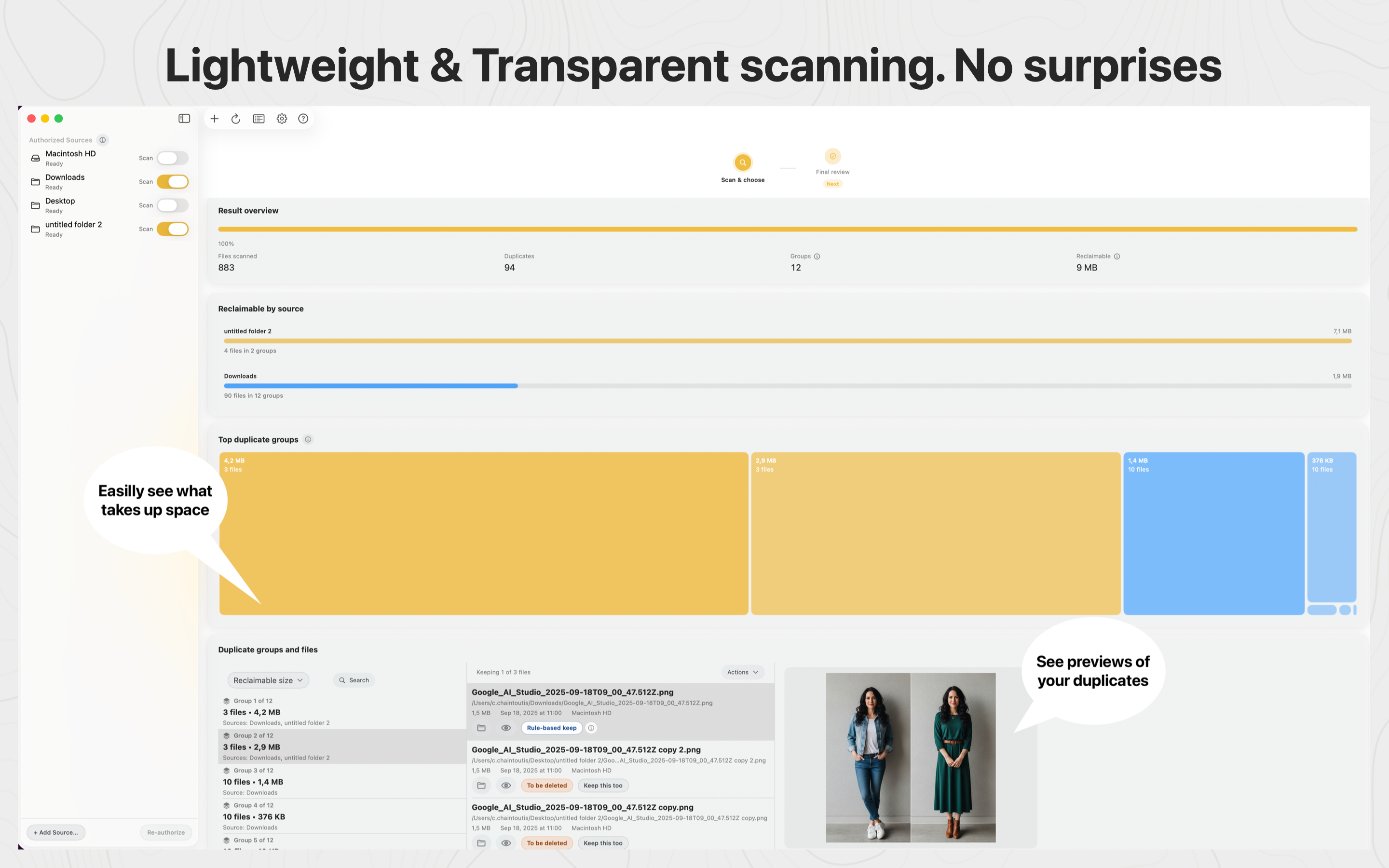
Start with a full scan in unclutr files. It groups exact duplicates (byte-for-byte identical files), which is much safer than broad “similar file” detection for documents, archives, installers, and project assets.
This means you review high-confidence matches instead of guessing from filenames.
Step 2: Sort by size to get fast wins first
Do not start with tiny files. Start with the largest duplicate groups. Deleting three 6 GB duplicates frees more space than reviewing hundreds of tiny items.
This is the fastest way to get a useful result when your goal is a one-time cleanup.
Step 3: Keep one canonical copy per group
For each duplicate set, decide which location is your source of truth. For example:
- Keep the copy in your active project folder, remove the export copies elsewhere.
- Keep the file on your archive drive, remove the duplicate in Downloads.
- Keep the organized photo/video folder, remove duplicate imports from SD-card transfer folders.
This single rule (pick a canonical location first) reduces most deletion mistakes.
Step 4: Use Smart Exclude Rules before broad scans
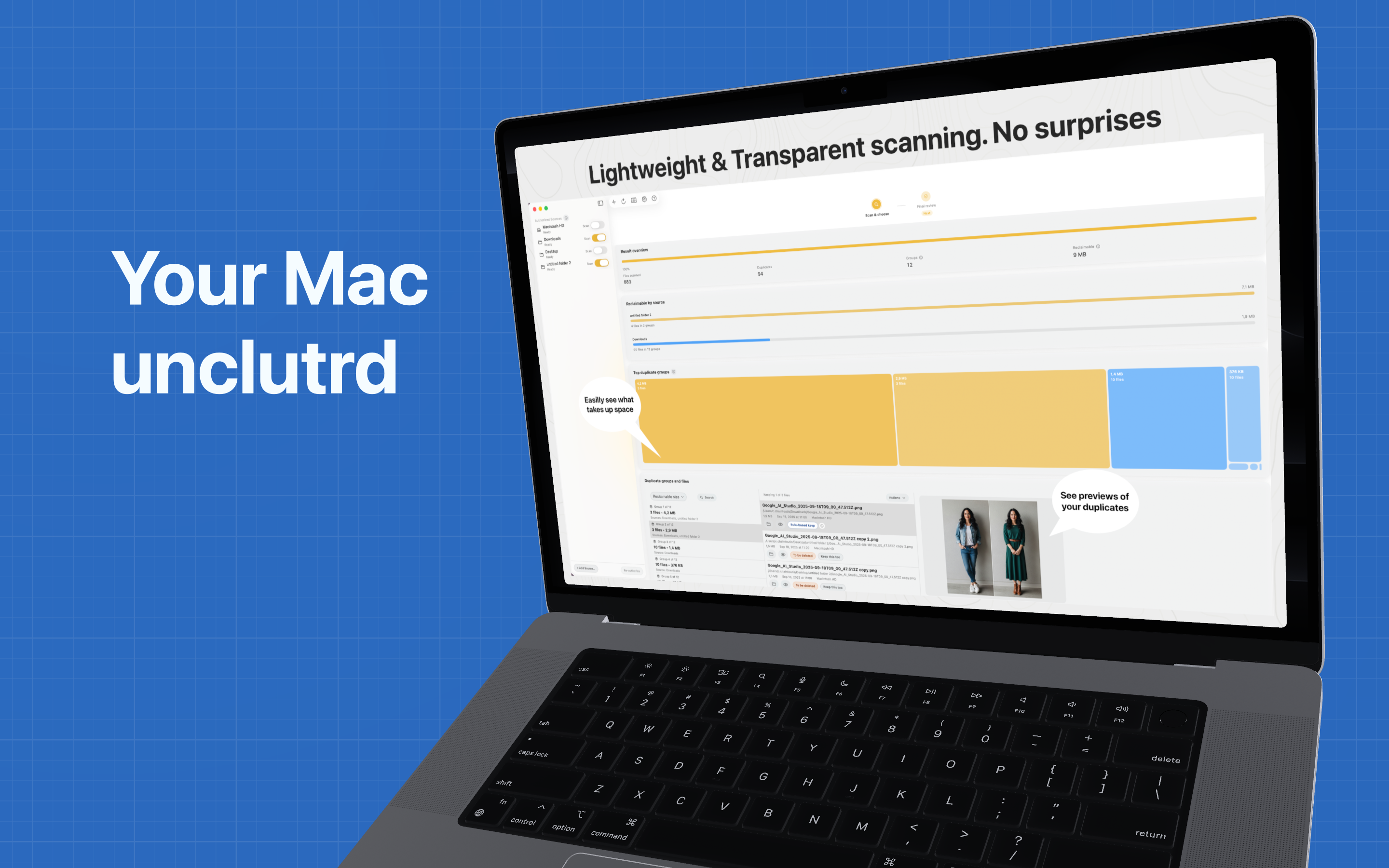
If your Mac has a lot of generated files, scans can get noisy. Smart Exclude Rules help by skipping regenerable caches and previews before the scan runs.
This is especially useful for one-time cleanups on machines used for creative work, gaming, or technical workflows.
- Creatives: generated previews, caches, proxies, renders (Lightroom, Capture One, Photoshop, Final Cut Pro, Resolve, Premiere, audio DAWs).
- Gamers: shader and launcher caches that are large but easy to regenerate.
- 3D/VFX: generated cache paths for Blender, Houdini, Maya, Unreal, and Unity workflows.
- Data/ML + Engineering/CAD: package/model/dataset caches and generated build/cache directories.
Result: cleaner duplicate groups, less review time, and fewer low-value files in your results.
Safety model: what makes this workflow low-risk
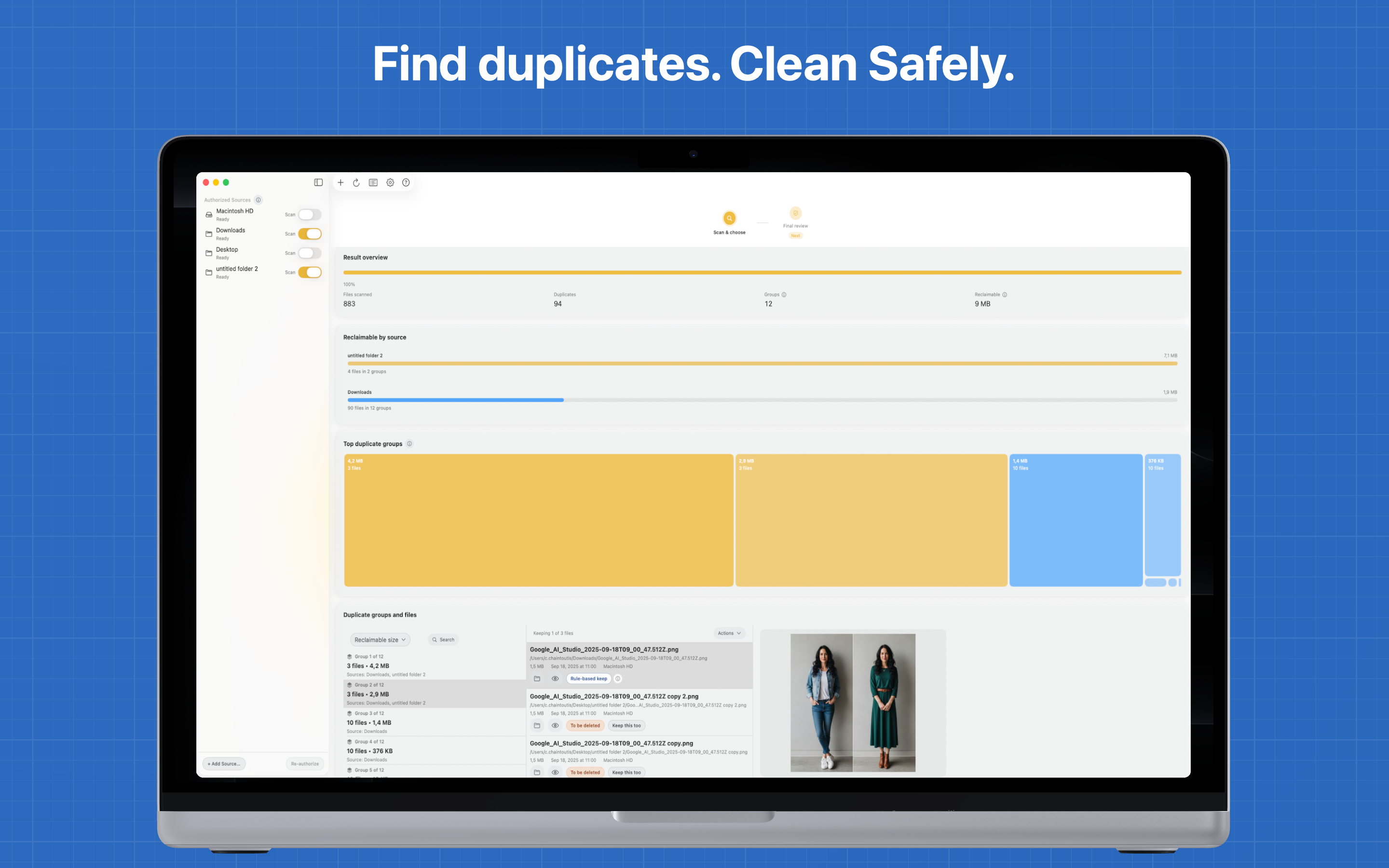
- Exact duplicates only: no fuzzy matching for files.
- Review-first: you choose what to keep and what to remove.
- Move to Trash: cleanup is not a permanent delete action.
- Local processing: file contents are not uploaded to a cloud service for analysis.
If you only need to do this once, these guardrails matter more than speed alone.
Quick FAQ
Does it detect exact duplicates only?
Yes. unclutr files focuses on exact duplicate files for high-confidence cleanup.
Will it delete files automatically?
No. You review duplicate sets first, then choose what to remove.
Can I still use it later as maintenance?
Yes. A short monthly scan is usually enough to keep duplicates from building up again.
